Arc is shutting down. Where should you go next?
Arc stops working on 22 December. Here's how to choose between Dia, Chrome and a few other browsers, why I went back to Chrome, and how to get your Spaces and tabs out of Arc in time.
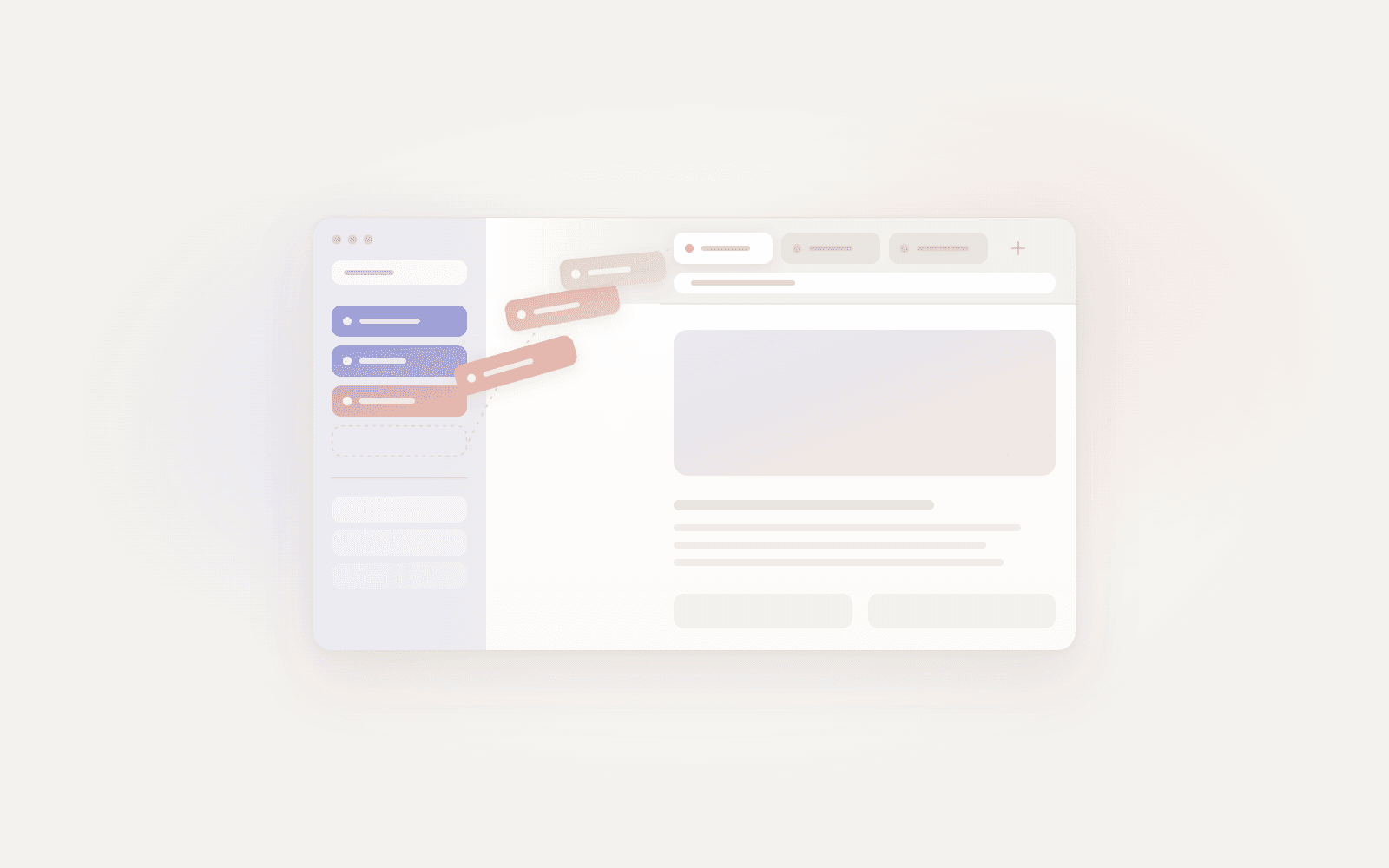
Arc is shutting down on 22 December. If it's your main browser, you've got a month to decide where to go next and to get your Spaces and tabs out.
There are a few places you can go. Dia is The Browser Company's own successor to Arc. Brave, Vivaldi and Firefox are options too. This is how I'd think about them, what I did myself, and how to move without losing anything.
The Arc dates that matter
These are from Arc's help centre:
- 23 November: Arc on Mac and Windows starts showing reminders about the shutdown. Arc Search on iPhone and Android keeps working as a browser, but its AI features turn off and you can no longer sign in or sync.
- 15 December: the last day to request a copy of your Arc account data, or ask for it to be deleted. That covers your account details, not the browsing data on your computer.
- 22 December: Arc on Mac and Windows stops working and all Arc accounts are deactivated. Arc Search is removed from Android. Arc Search on iPhone keeps working as a browser.
After 22 December you can't open Arc to get to your Spaces, tabs or anything else stored on your computer. Whatever you want to keep has to come out before then.
Where to go next
Dia
Dia is the simplest move. Choose to import from Arc when you set it up, and it brings over your Spaces, Favorites, pinned tabs and folders, along with your bookmarks, history, passwords and extensions. Its latest update added nested tab groups and a fuller Arc import, which closes more of the gap (PiunikaWeb). If you want the closest thing to Arc, go with Dia.
Brave
Brave suits you if you want a Chromium browser with ad and tracker blocking built in (Brave Shields). There's no documented way to import directly from Arc, but you can import bookmarks from other browsers on your computer or from a bookmarks HTML file (Brave Help).
Vivaldi
Vivaldi suits you if you want vertical tabs, workspaces and tab stacks built in, without adding extensions. Official help doesn't list a direct Arc import, but you can import from other browsers on the same computer or from a bookmarks HTML file (Vivaldi Help).
Firefox
Firefox is the option if you'd rather not use a Chromium browser. It runs on Mozilla's own Gecko engine, not Chromium (Mozilla), so some Chrome extensions won't have a Firefox version. The current Firefox release doesn't document a direct Arc import, but you can import bookmarks from other browsers, such as Chrome, or from a bookmarks HTML file (Firefox Help).
Why I went back to Chrome
Personally, I went back to Chrome. But I wanted it polished. I've always liked Safari's start page, and I wanted Chrome's new tab page to feel like that, supercharged the way Arc was. So I made Favourites. More on that below, after the part everyone needs to do first.
Chrome makes more sense if:
- You don't want an AI browser. Dia has an AI assistant built in. If you just want a browser, Chrome is the plainer choice.
- Chrome is what work gives you. Plenty of people use whatever browser their company manages, and that's often Chrome.
- You already live in Chrome elsewhere. If your phone, your other computers and your Google account are already set up around Chrome, one browser everywhere is simpler.
How to export your Spaces and tabs from Arc
Do this first, and do it well before 22 December.
- On a Mac: open Arc, go to Arc > Settings in the menu bar, choose Advanced, then Export Data.
- On Windows: open Arc's settings with Ctrl and comma, find Export Spaces and tabs under Advanced, then choose Export Data.
Arc saves a file called Arc Data Export.md. It has a section for each Space, with your Favorites, pinned tabs, folders and other sidebar tabs as links. Save it somewhere you'll find it again.
If you only want one folder, right-click it in Arc's sidebar and choose Copy All Links. On a Mac, hold Option while the menu is open to copy them as Markdown with their titles.
Two things need extra care. Easels have their own export: open your Library, choose Easels, then Export All Easels. Boosts can't be exported at all (Arc's export guide).
How to import from Arc to Chrome
There's no direct import. Chrome can import bookmarks from a bookmarks HTML file or from browsers like Safari and Firefox, but it has no Arc option, and Arc's export is a list of links rather than a bookmarks file (Chrome Help).
So this part is manual. Open the export in any text editor and add the sites you actually use to Chrome's Bookmarks Bar. Put them in folders the way you had them in Arc: one for work, one for a side project, one for the sites you open every day.
It's a good moment to clear out. A month of Arc reminders is a decent prompt to ask which pinned tabs you still open.
There are third-party tools that turn Arc's data into a bookmarks file Chrome can import. If you use one, check the result. If Chrome already has bookmarks, imported ones land in a separate folder rather than on your Bookmarks Bar, so you'll probably need to move things around.
The Arc features Chrome already has
Chrome has caught up on more than people expect.
- Vertical tabs: right-click the top of a Chrome window and choose Show Tabs Vertically (Google).
- Separate Spaces for work and personal: Chrome profiles keep each one fully apart, with its own bookmarks, history and sign-ins.
- Sets of tabs that belong together: tab groups. Name and colour a group, and save it so you can reopen it later.
- Finding an open tab: Cmd+Shift+A on a Mac, or Ctrl+Shift+A on Windows, searches your open tabs.
- A sidebar for extra tools: Chrome's side panel, for bookmarks, reading list and more.
What Chrome doesn't give you is Arc's grid of Favorites, or one keyboard shortcut to jump straight to the sites you've saved.
Favourites: an Arc-style favourites grid for Chrome
Favourites is a Chrome extension that turns every new tab into a grid of your favourite sites, built from the Bookmarks Bar you've just set up. If you're leaving Arc for Chrome, it's the piece that brings back a home for the sites you open every day.
How Favourites matches what you had in Arc
- A grid of favourites: your bookmarks as site icons, in folders or sections, like Arc's Favorites.
- Workspaces, like Spaces: turn bookmark folders into Workspaces and switch between them on the new tab.
- Opening a set of sites at once: open a folder's sites together as a Chrome tab group, or in a new window.
- A command bar: press Cmd+K on a Mac or Ctrl+K on Windows to find a bookmark or folder, or save the tab you're on. You can also type
favin the address bar to search your bookmarks. - Your bookmarks stay in Chrome: drag and drop to reorganise, select several at once, or hide ones you don't want on the grid. Changes go straight into Chrome's own bookmarks, so they sync if you use Chrome sync. There's an undo if you change your mind, and no account to create.
What Favourites doesn't do
I'd rather you knew now than found out later. Favourites doesn't import from Arc, so you still need the steps above. It doesn't manage your open tabs, and its command bar searches your bookmarks, not your open tabs. It has nothing like Arc's auto-archive, Peek, Split View or Boosts. Workspaces are bookmark folders, not separate sets of tabs, so they work alongside Chrome's profiles and tab groups rather than replacing them.
Setting up Favourites after Arc
- Get your Arc sites into Chrome's Bookmarks Bar, in folders, using the steps above.
- Add Favourites to Chrome.
- Open a new tab. Your Bookmarks Bar folders appear as your grid, ready to turn into Workspaces.
Your checklist before 22 December
- Export your Spaces and tabs from Arc, and your Easels if you use them.
- If you want a copy or deletion of your Arc account data, request it by 15 December.
- Add the sites you use to Chrome's Bookmarks Bar, in folders.
- Turn on vertical tabs, and set up profiles if you kept work and personal apart.
- Add Favourites if you want your favourites grid back.
If you want to go further, I've written about how to customise Chrome's new tab page. And if Chrome is the only browser your company lets you use, this one on staying productive when you can't install new apps might help too.