How to customise Chrome's new tab page (and why I built Favourites)
Want a better Chrome new tab page? Here's how to customise your browser, organise your bookmarks and create a cleaner, more useful start page.
Google Chrome is one of the most widely used browsers in the world, but there's one part of the experience I've always felt could be better: the new tab page.
Think about how often you open a new tab. Whether you're working, researching, shopping or jumping between websites, it's something you probably do dozens of times every day.
Yet Chrome's default new tab page doesn't always make particularly good use of that space.
You get a search bar, a handful of shortcuts and some basic personalisation options. It works, but if you use Chrome throughout your working day, there's an opportunity to make it much more useful.
I wanted something cleaner, more personal and better connected to the websites I actually use.
That's why I built Favourites, a Chrome extension that transforms your existing bookmarks into a beautiful, customisable new tab page.
But before getting into Favourites, let's look at what you can already do with Chrome and how to make your browser work better for you.
How to customise Chrome's new tab page
Chrome includes several built-in options for changing the appearance and behaviour of your new tab page.
You don't necessarily need an extension to get started. Google documents the controls in Customise your New Tab page. Those options are available when you're signed in and Google is your default search engine.
Change your Chrome background and theme
The simplest way to personalise Chrome is to change its appearance.
- Open a new tab in Chrome.
- Select Customise Chrome in the bottom-right corner.
- Open the appearance or theme settings.
- Choose a background image, colour or theme.
- Adjust your light or dark mode preferences.
You can also upload your own background image to give Chrome a more personal feel.
It's a straightforward improvement, particularly if you prefer a more minimal desktop experience.
Add shortcuts to your favourite websites
By default, Chrome can display shortcuts to websites you visit frequently.
You can also choose your own shortcuts:
- Open a new tab.
- Select Customise Chrome.
- Find the Shortcuts settings.
- Select My shortcuts instead of Most visited sites.
- Add or edit the websites you want quick access to.
This is useful if you regularly visit the same handful of websites.
For example, you might add Gmail, Outlook, Notion, YouTube or your company's internal tools.
However, there's an important limitation.
Chrome's new tab shortcuts aren't the same thing as your bookmarks.
They exist separately, which means you can end up managing two different collections of websites.
If you already have an organised Bookmarks Bar, that's unnecessary duplication.
Make better use of the Chrome Bookmarks Bar
Chrome's Bookmarks Bar is one of its most useful features, particularly if you use your browser for work.
You can show or hide it with a keyboard shortcut:
- Mac: ⌘ + Shift + B
- Windows and Linux: Ctrl + Shift + B
Once enabled, you can organise websites into folders, rename bookmarks and create a structure that matches how you work.
For example:
- Work: company systems, dashboards and internal resources
- Projects: tools and websites associated with individual projects
- Personal: banking, shopping, travel and everyday services
- Reading: articles, research and websites you want to revisit
This gives you a much stronger foundation than relying exclusively on new tab shortcuts.
The problem is that Chrome doesn't automatically turn that existing bookmark structure into a visual new tab experience.
And that's where a Chrome new tab extension can make a difference.
Why use a Chrome new tab extension?
A new tab extension replaces or enhances the page that appears when you open a new tab.
Depending on the extension, this can give you additional customisation options, visual bookmarks, productivity features or a completely different interface.
Some extensions focus on dashboards with calendars, tasks and widgets.
Others prioritise minimalism, backgrounds or quick access to websites.
Personally, I've never wanted my browser to become another complicated productivity application.
I already have enough tools competing for my attention.
What I wanted was something that helped me get where I was going, without creating another system to maintain.
For me, the ideal Chrome start page should do three things:
- Make frequently used websites immediately accessible.
- Help organise bookmarks without duplicating them.
- Look and feel like a natural part of the browser.
Those three principles became the foundation for Favourites.
Introducing Favourites, a better Chrome new tab page
Favourites is a Chrome extension I created to make the browser's new tab experience cleaner, faster and more useful.
It's inspired by something I've always appreciated about Safari on Apple devices: the way favourite websites are presented visually.
Safari makes it easy to recognise and open the websites you use most, without requiring much thought.
I wanted to bring a similar experience to Chrome, while making better use of the bookmarking features Chrome already provides.
The result is a customisable new tab page that uses your existing Chrome Bookmarks Bar as its foundation.
Instead of creating an entirely separate collection of website shortcuts, Favourites displays and manages the bookmarks you already have.
Your bookmarks remain in Chrome. Favourites simply makes them easier to use.
Visual bookmarks instead of another list
One of the biggest differences is how your websites are presented.
Favourites turns bookmarks into visual tiles with recognisable website icons, making them easier to scan and access.
Rather than navigating through a traditional menu, you can see your favourite websites whenever you open a new tab.
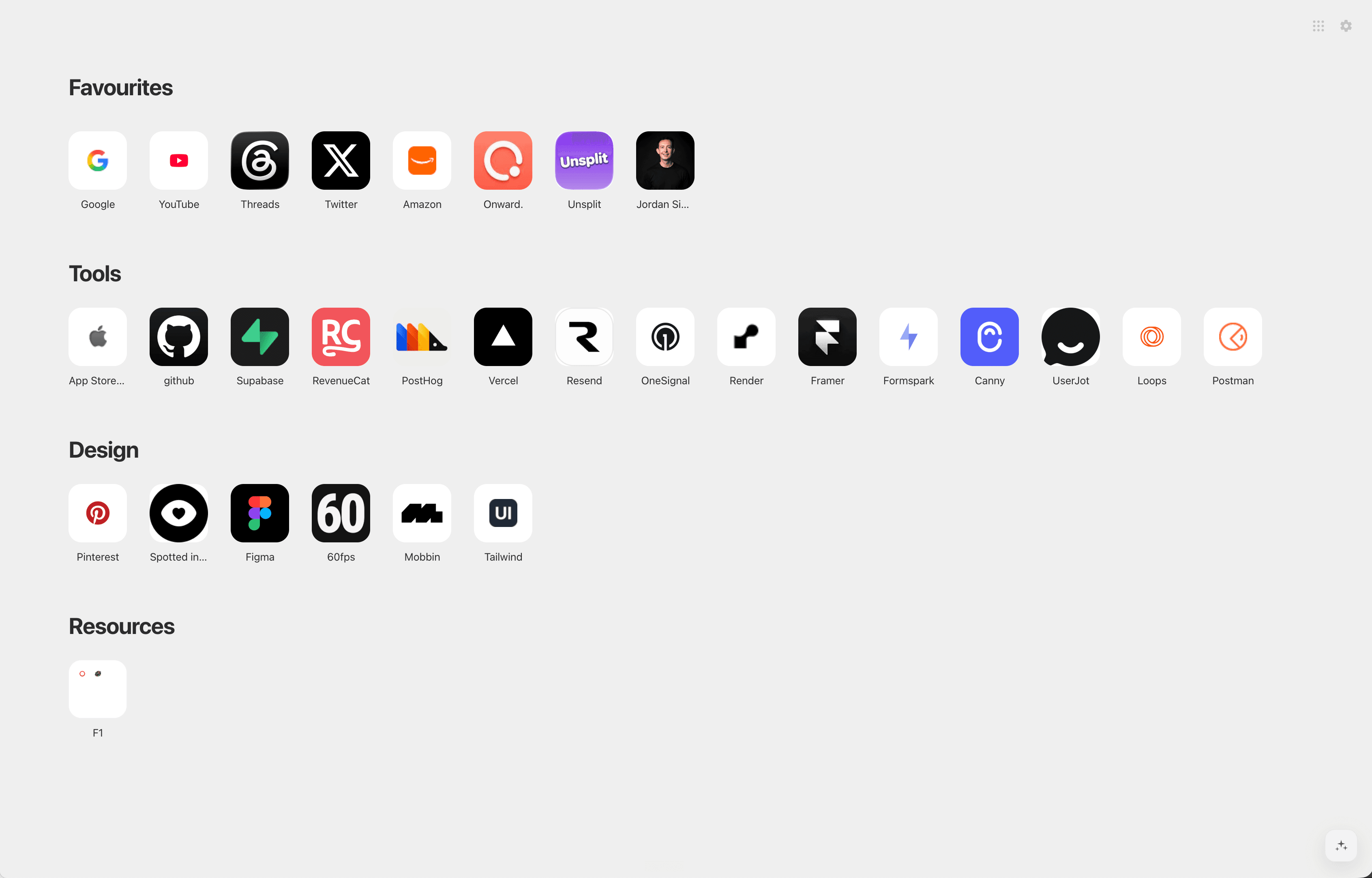
You can also choose how they appear.
Favourites supports different layouts, including:
- App icons: a clean grid of recognisable website icons.
- Carousel: a more spacious way to browse your favourites.
- List: a compact layout for people who prefer information density.
- Folders and sections: different ways to navigate and organise collections of bookmarks.
You can even configure different layouts for individual folders.
For example, you might prefer an icon grid for personal websites and a more compact list for work resources.
It's a small detail, but one that makes a significant difference when you're regularly switching between different websites.
There are two ways to start, and both are included. Classic Favourites is the full board. Launchpad is the quieter home. The Favourites features page shows each of them.
Organise Chrome bookmarks with drag and drop
Chrome already has a dedicated Bookmark Manager, but I've always felt that organising bookmarks should be simpler.
With Favourites, you can manage bookmarks directly from your new tab page.
Move websites between folders, rearrange their order, rename bookmarks and create new folders without needing to open a separate management screen.
Changes are reflected in Chrome because Favourites works with the browser's existing bookmark structure.
This is particularly useful if your Bookmarks Bar has become cluttered over time.
And if you eventually uninstall Favourites, your bookmarks remain in Chrome.
There's no separate bookmark database to export or migrate.
Search Chrome bookmarks with your keyboard
I'm a big fan of keyboard shortcuts, especially for actions I repeat throughout the day.
Favourites includes a command interface that makes finding websites much quicker.
Press ⌘K on Mac or Ctrl+K on Windows and Linux to search your bookmarks, navigate folders and access commands.
You can also search Favourites directly from Chrome's address bar.
Simply type fav, press Space, and start searching.
This is one of those features that doesn't sound particularly exciting until you start using it.
Instead of remembering which folder contains a particular website, you can find it almost immediately.
For anyone managing dozens or hundreds of bookmarks, that's a genuinely useful improvement.
Make Chrome feel more like Safari
If you've switched between Safari and Chrome, you'll probably have noticed that the browsers take different approaches to the new tab experience.
Safari places more emphasis on presenting your favourite websites visually.
Chrome offers shortcuts and customisation, but its standard new tab page doesn't present your complete bookmark structure in quite the same way.
Favourites was originally inspired by that difference.
I wanted the simplicity of Safari's favourites page, combined with the flexibility of Chrome bookmarks.
But the idea isn't to make Chrome an exact copy of Safari.
It's to take the parts of Safari's experience that work particularly well and build something more flexible around them.
With Favourites, you can create a Safari-inspired Chrome new tab page while retaining Chrome's bookmark management, folders and syncing capabilities.
You also have additional control over layouts, backgrounds, appearance, icon styles and how your favourites are displayed.
If you like Apple's approach to clean, considered interfaces but prefer using Chrome, that's precisely the experience I wanted to create.
Turn your Chrome bookmark folders into workspaces
This is one of my favourite ways to use Favourites.
Like a lot of people, I use Chrome for several different parts of my life.
During the day, I work in a corporate environment, moving between internal systems, project documents, dashboards and operational tools.
Outside work, I'm often developing applications, researching ideas or working on my website.
Each of those activities has a different set of websites.
Historically, I've used bookmark folders to keep everything organised.
Favourites takes that a little further. A folder can act as a workspace, which Favourites calls a Space. Open it, and the bookmarks in that folder come up together as a Chrome tab group.
For example, I might have folders for:
- My day job and frequently used business systems
- An application I'm currently developing
- Website development and analytics
- Research and reading
- Personal websites and everyday tasks
It's a simple way to switch between working contexts.
And unlike introducing a completely separate workspace application, it builds on a structure I already maintain.
I think that's an important distinction.
The best productivity improvements don't always require another productivity tool. Sometimes they just make your existing tools work harder.
A Chrome start page that looks the way you want
Functionality matters, but I also believe that the tools we spend our time using should feel good.
I'm quite particular about the software I use.
I like clean interfaces, sensible defaults and personalisation that doesn't overwhelm you.
Favourites reflects that approach.
You can adjust the appearance of your start page, including its background, icon styles, layout density and how folders are displayed.
It supports light and dark appearances, as well as automatic appearance settings.
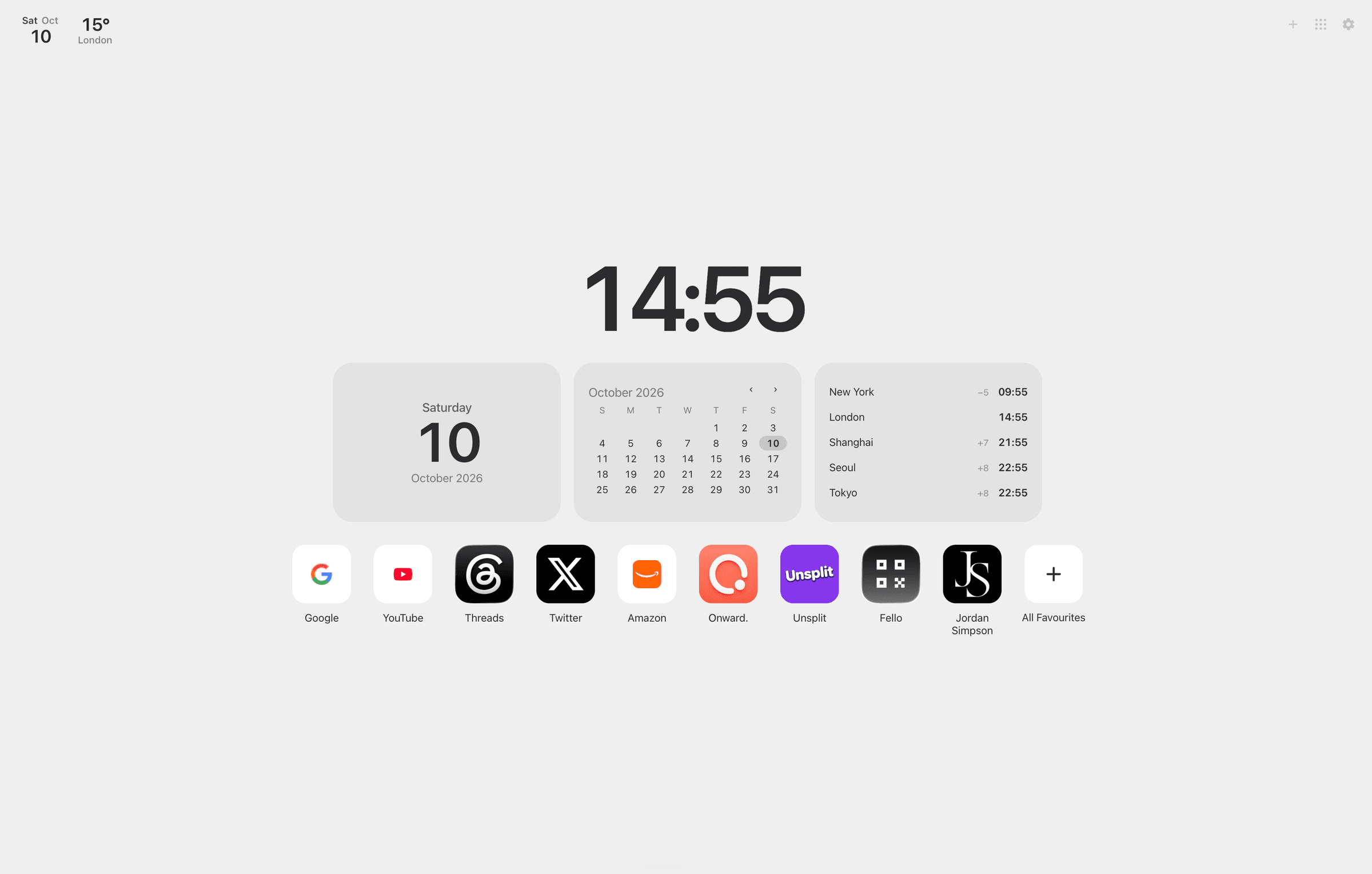
Launchpad can also show optional widgets for the date, a calendar, a world clock and the weather. Leave them off if you want the page to stay quiet.
You can keep things simple with a few favourite websites or organise a much larger collection.
The point is that there isn't one layout that works for everyone.
A developer, a student and someone working in a large corporate organisation might all use Chrome very differently.
Your new tab page should be able to reflect that.
What about privacy and bookmark syncing?
Whenever I install a browser extension, I think it's reasonable to ask what happens to my data.
That's particularly important for an extension that works with bookmarks.
Favourites is designed around a straightforward principle: your bookmarks remain yours.
It doesn't require you to create a Favourites account or maintain a second bookmark collection on a separate server.
Your bookmarks remain stored and managed by Chrome.
If you have Chrome bookmark syncing enabled, changes to your bookmarks can continue to sync across your Chrome devices through Google's existing systems.
Optional suggestions based on your browsing are processed on the device. Optional intelligence stays there too. Weather, if you choose to turn it on, requests a forecast for a place you pick.
The Favourites privacy policy is the full account, including product analytics.
For me, this matters just as much as the interface.
I don't want a better-looking browser to come at the expense of unnecessary complexity or control over my information.
How to install Favourites in Chrome
Getting started is straightforward.
- Visit Favourites on the Chrome Web Store.
- Select Add to Chrome.
- Confirm the installation.
- Open a new tab.
- Choose your preferred layout and personalise the experience.
If you already use Chrome's Bookmarks Bar, Favourites can work with your existing folders and bookmarks.
There's no need to recreate everything from scratch.
If your Bookmarks Bar is empty, you can start building your collection directly in Chrome or in Favourites.
I'd recommend creating a few simple folders first, rather than trying to organise every bookmark you've ever saved.
Start with the websites you actually visit each week.
You can always expand your setup later.
You can also read about Favourites before you install, then come back to the new tab page and make it yours.
On a managed work laptop, you may not be allowed to install an extension at all. The Bookmarks Bar is still worth organising. There is a separate piece on staying productive when you cannot install anything new.
Why I built Favourites
I've spent much of my career working with technology, but outside my full-time job, I also enjoy building my own applications.
Many of the things I create start with a relatively small frustration.
Something I use regularly doesn't work quite as well as I think it could.
Sometimes there's an opportunity to build an entirely new experience. Other times, the better solution is simply to improve what already exists.
Favourites belongs firmly in the second category.
I didn't want to replace Chrome's bookmarks or create another service that people needed to manage.
I wanted to make an existing, useful feature more accessible.
What started as an idea for a Safari-style new tab page has gradually developed into something broader, with different layouts, keyboard shortcuts, workspaces and Launchpad.
The challenge is maintaining the simplicity that made the original idea appealing.
I don't want opening a new tab to feel like opening another dashboard that demands attention.
I want it to feel like a natural starting point.
Somewhere you can see what matters, find what you need and move on.
Frequently asked questions about Chrome new tab customisation
Can you customise the Google Chrome new tab page?
Yes. Chrome includes built-in options to change your background, colours, themes and website shortcuts. For more advanced customisation, you can install a Chrome new tab extension such as Favourites to replace the default experience.
How do I show my bookmarks on Chrome's new tab page?
Chrome's default new tab shortcuts are separate from its Bookmarks Bar. Show the Bookmarks Bar with ⌘ + Shift + B on Mac, or Ctrl + Shift + B on Windows and Linux. Favourites can display those existing bookmarks directly on the new tab page.
Can I make Google Chrome look like Safari?
You can create a more Safari-inspired Chrome experience with a minimal theme and a visual bookmark extension. Favourites was inspired by Safari's approach to displaying favourite websites, with support for Chrome bookmarks, folders and personalisation.
What's the difference between Chrome bookmarks and shortcuts?
Chrome bookmarks are saved websites that can be organised into folders and synced between devices. New tab shortcuts are a separate collection of links on Chrome's default new tab page. Favourites uses your existing Chrome bookmarks, so you don't have to maintain both.
Will I lose my bookmarks if I uninstall Favourites?
No. Favourites uses Chrome's existing bookmark structure. Uninstalling the extension does not delete your Chrome bookmarks.
Can I sync Favourites between computers?
Because Favourites uses Chrome bookmarks, your bookmark collection can sync through Chrome Sync when that is enabled. Some extension-specific preferences may be separate from your synced bookmarks.
Is Favourites free to use?
Yes. Favourites is free to install from the Chrome Web Store.
A better way to start browsing
Your browser is probably one of the applications you spend the most time using.
Small improvements to that experience can make a meaningful difference, particularly when they're repeated throughout the day.
Whether you simply want a cleaner Chrome new tab page, a better way to organise your bookmarks or something that feels a little more like Safari, there are plenty of ways to improve the default experience.
Favourites is my attempt to bring those ideas together.
It's designed to make your existing bookmarks more useful, your browser more personal and the websites you need easier to reach.
I'm continuing to improve it, and I'd genuinely welcome feedback from anyone who gives it a try.
If there's something you'd like to see, or a part of your browsing experience that you think could work better, I'd love to hear about it.
Discover Favourites for Chrome.
Install Favourites from the Chrome Web Store.
Favourites is an independent Chrome extension created by Jordan Simpson. It is not affiliated with Google or Apple.