How to stay productive when your company won't let you install new apps
Microsoft To Do can be the one list. Outlook stays an inbox. A way to work inside Microsoft 365 when you cannot install anything else.
A lot of productivity advice starts with software you cannot install. A new task manager. A notes app with an AI assistant. Another subscription promising to organise your working day.
If you work in a large organisation, most of that advice is irrelevant. Your company probably uses Microsoft 365, your laptop is managed by IT, and you cannot simply replace the tools everyone else uses.
But the problem isn't necessarily the software. It's how we use it.
Between Outlook, Teams, Planner, Loop and OneNote, Microsoft 365 already provides most of what you need to build a genuinely effective productivity system.
The challenge is bringing everything together without spending half your day managing the system itself.
My approach is simple: one place for tasks, one place for communication, and dedicated time to actually get things done.
Microsoft To Do: one place for everything
The biggest problem with managing work in Microsoft 365 is that tasks appear everywhere.
Someone assigns you an action in Planner. Another colleague adds something to a Loop task list. You flag an email in Outlook. A meeting generates another action, and somewhere in OneNote you've written down something you promised to complete.
Before long, you have five different places to check.
This is why I think Microsoft To Do is one of the most underrated applications in Microsoft 365.
It isn't particularly exciting. It doesn't have hundreds of features or an elaborate interface. But its biggest advantage is that it already connects to the tools you're using.
Microsoft To Do can bring together:
- Flagged emails: Messages you flag in Outlook appear automatically as tasks.
- Microsoft Planner: Tasks assigned to you across your Planner plans appear in your Assigned to Me list.
- Microsoft Teams: Tasks assigned through Planner in Teams can appear alongside your other assignments.
- Microsoft Loop: Assigned tasks from synced Loop task lists and collaborative meeting notes can flow through Planner into your task view.
- Personal tasks: Anything you create directly in Microsoft To Do.
Some connections need enabling in To Do's settings, and availability depends on your organisation's Microsoft 365 configuration. Microsoft documents the Planner tasks in To Do and how Loop tasks and meeting notes reach Planner.
The result is a single place to see what you need to accomplish, regardless of where the work originated.
You don't need to open every Planner board, search through Teams or remember which meeting contained an action.
You simply open Microsoft To Do.
Set up your master task list
I recommend keeping the structure deliberately simple.
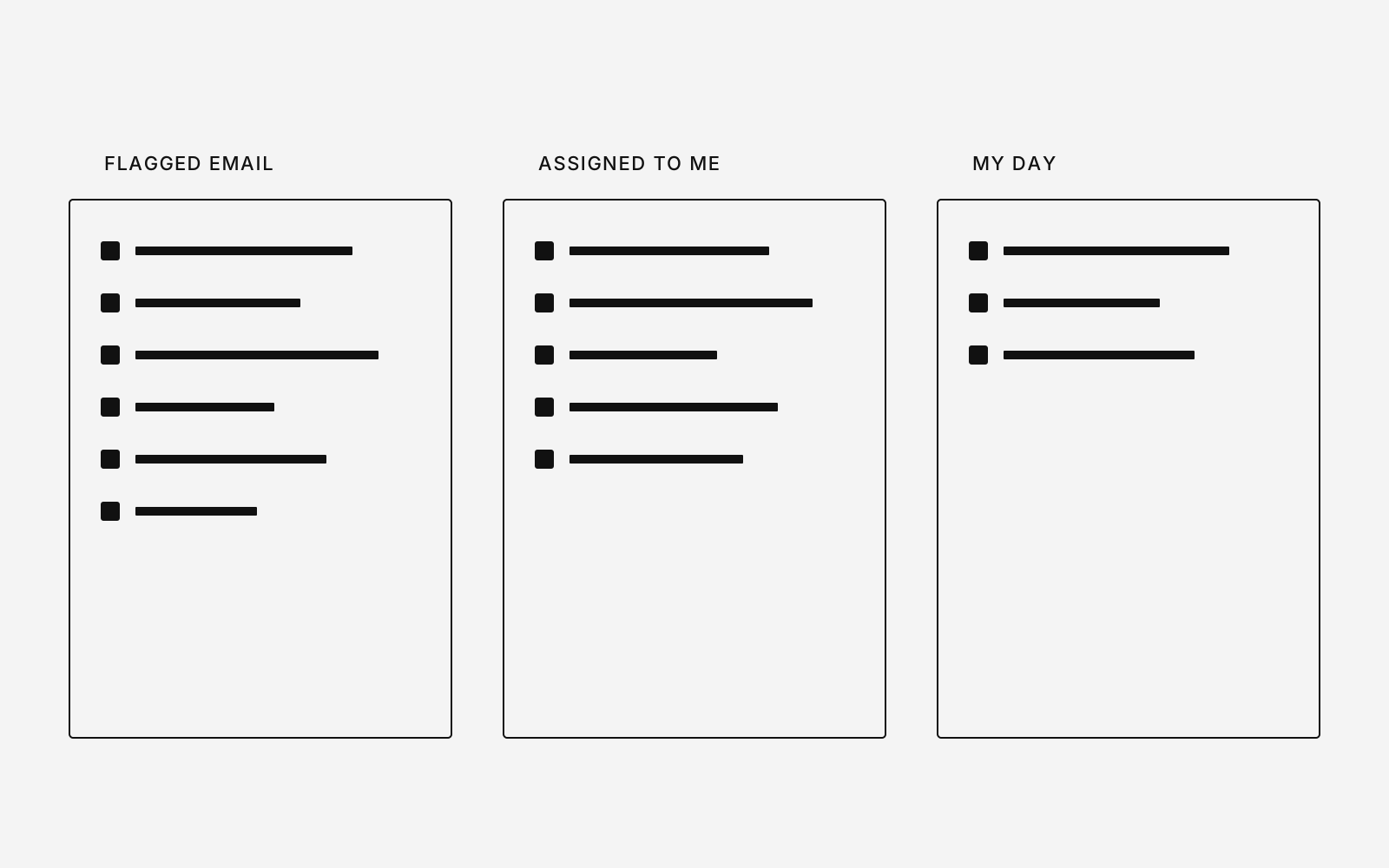
Start by enabling the Flagged Email and Assigned to Me smart lists in Microsoft To Do.
These become two of your most important views.
Flagged Email captures work coming through Outlook. Assigned to Me brings together work assigned through Planner and connected Microsoft 365 experiences.
Your own tasks sit alongside them.
Then there's My Day.
This is where Microsoft To Do becomes particularly useful.
Every morning, you can review your outstanding commitments and decide which tasks actually deserve your attention today.
Not everything that needs doing needs doing today.
That's an important distinction.
My Day allows you to select a realistic number of tasks without losing sight of everything else. Unfinished tasks remain in your system, rather than disappearing when the day ends.
I wouldn't create dozens of lists organised around every project or department.
If your system requires you to spend twenty minutes deciding where a task belongs, you've created another job.
The purpose of a task manager is to help you finish work, not organise an increasingly complicated collection of it.
Bringing other tools into Microsoft To Do
Of course, not every organisation works exclusively in Microsoft 365.
You might have a development team using Jira, a marketing team using Asana, or your own actions scattered across OneNote.
This is where a tool called Pleexy becomes interesting.
Pleexy connects external productivity applications to Microsoft To Do, allowing you to bring tasks from different systems into one place.
It supports integrations including Jira, Asana, OneNote, Trello, ClickUp and Notion.
For example, you could have a Jira issue assigned to you automatically appear in Microsoft To Do. When you're planning your day, that issue can sit alongside your flagged Outlook emails and Planner assignments.
Pleexy also supports synchronising selected task updates, depending on the integration and configuration.
This is particularly useful when you're working across multiple departments with different systems.
The goal isn't to replace Jira or Asana. Those applications still serve their purpose for the teams managing the projects.
It's simply to give you one personal view of your commitments.
One important consideration: Pleexy is a third-party service. If you're working with a corporate Microsoft 365 account, check that your organisation permits the integration before connecting it. A useful productivity tool isn't worth creating a data security problem.
For organisations that don't allow third-party integrations, Microsoft To Do's existing connections still provide a strong foundation.
Your Outlook inbox is not your task list
This is probably the single biggest change I'd recommend to anyone struggling with email.
Stop using your inbox as a list of things you need to do.
An inbox is designed to receive information. It's not designed to prioritise work, manage deadlines or help you understand how much time a task will take.
Yet that's exactly how many of us use it.
We leave emails unread because they're important. We mark messages as unread after opening them. We move emails into folders called Action, Important or Follow Up.
Eventually, the inbox becomes an enormous collection of unfinished work.
And because new messages constantly arrive, your priorities are effectively determined by whoever emailed you most recently.
That isn't a particularly good way to run your working day.
A simple system for processing email
I use a straightforward approach inspired by the Getting Things Done methodology.
When you open an email, make a decision.
- Respond immediately: If you can resolve it in under three to five minutes, reply and move on.
- Flag it: If it requires more substantial work, flag the email so it appears in Microsoft To Do.
- Delegate it: If someone else needs to act, forward it or assign the action, then track the follow-up if necessary.
- Categorise it: If the message contains useful information you may need later, apply an appropriate Outlook category.
- Archive or delete it: If there's nothing further to do, get it out of your inbox.
The important part is making a decision rather than repeatedly reopening the same message.
An email that takes thirty minutes to resolve shouldn't sit in your inbox for three days reminding you that it exists.
It should become a task, with time allocated to complete it.
Create a Search Folder for flagged emails
This is a particularly useful Outlook feature that many people overlook.
Outlook allows you to create a Search Folder that automatically displays all emails flagged for follow-up.
Unlike a normal folder, a Search Folder doesn't move or duplicate your messages. It simply creates a live view of everything matching your criteria.
Create one called Flagged Emails.
Depending on your Outlook version, you'll find Search Folders in the folder pane or under Outlook's mail settings. Select the option for messages flagged for follow-up.
Now you have two useful perspectives on the same work.
In Microsoft To Do, your flagged emails become actionable tasks alongside everything else.
In Outlook, the Search Folder gives you a complete view of the original messages, including their conversations and attachments.
This makes it much easier to understand how much outstanding work is related to email without treating the inbox itself as your task list.
When you complete the work, mark the task or flag as complete.
Your system stays current without manually moving emails between folders.
Stop organising email into endless folders
I have a fairly strong opinion about email folders.
For most people, they're unnecessary.
Over the years, I've seen elaborate Outlook folder structures containing projects, departments, people, markets and individual workstreams.
They look organised.
But they're often a significant waste of time.
Consider an email about a technology project involving your finance team and a particular market.
Does it belong in the technology folder? Finance? The market? The project?
You could make an argument for any of them.
That's the problem with folders. They force you to decide where information belongs, even when that information naturally relates to several different things.
I prefer categories over folders.
Outlook categories let you apply multiple labels to the same message without moving it.
An email could be categorised as Finance, Project X and Important Reference simultaneously.
You can then use Outlook search to find it when you need it.
For example:
- Projects: Information relating to an ongoing initiative.
- Reference: Useful information you might need again.
- News and Updates: Communications worth reading but requiring no action.
- Waiting: Something you've delegated or are waiting for someone else to complete.
Keep the number of categories manageable. If you're constantly creating new ones, you're rebuilding the folder problem with different labels.
For messages that don't need categorising, simply archive them.
Outlook search is powerful enough to retrieve most things without remembering where you filed them.
The objective isn't to build a perfect archive.
It's to stop spending valuable working time organising information you'll probably find through search anyway.
Protect your time, not just your tasks
Having one task list solves only half the problem.
You can know exactly what needs doing and still finish the day having accomplished very little.
This is where time-blocking becomes important.
Most corporate calendars are full of meetings, but the actual work we need to complete rarely appears on them.
We accept meetings throughout the day and assume we'll somehow find time between them to prepare presentations, review documents, solve problems or make decisions.
Then we wonder why we're still working at 7 pm.
I think your calendar should reflect all the work you're responsible for, not just the meetings other people have scheduled.
Separate meetings from deep work
I try to think about the working day in three different types of time.
Meetings and collaboration
The time when you need to work with other people, make decisions, share updates or resolve issues together.
Deep work
Protected blocks of time dedicated to activities requiring genuine concentration.
This might mean preparing a strategy, reviewing a complicated proposal, developing a project plan or writing something that needs your full attention.
During these blocks, your inbox and Teams notifications shouldn't be competing for attention.
Administration and communication
Time for processing email, responding to messages, reviewing tasks and dealing with smaller requests.
Not every email requires an immediate response.
And unless your role specifically involves providing real-time support, you probably don't need to check your inbox every ten minutes.
Put your tasks on the calendar
At the start of the day, review Microsoft To Do and select your priorities.
Then look at your calendar.
If you have three hours of meetings, two hours of available working time and six hours of tasks, something has to change.
This is where time-blocking forces you to be realistic.
Rather than hoping you'll find time for an important task, reserve that time explicitly.
For example, you might organise your day around:
- 9:00 to 9:30: Review priorities and process new emails.
- 9:30 to 11:00: Deep work on a priority project.
- 11:00 to 12:30: Meetings and collaboration.
- 13:30 to 15:00: Project work and follow-ups.
- 15:00 to 16:00: Meetings.
- 16:00 to 16:30: Email, administration and planning tomorrow.
This is an illustration, not a schedule everyone should follow.
Some days will be dominated by meetings. Others will give you more time to focus.
The point is that you're making a conscious decision about where your time goes.
A calendar isn't just a record of where other people expect you to be.
It should also protect the time you need to do your job.
Getting Things Done, without making it complicated
A lot of my approach comes back to the principles of Getting Things Done, often shortened to GTD.
The idea is that your brain shouldn't be responsible for remembering every outstanding commitment.
You need a trusted external system.
At its simplest, that means capturing what needs doing, clarifying the next action, organising it somewhere reliable, reviewing it regularly and then actually doing the work.
Microsoft To Do makes a good home for this because it brings together tasks from so many parts of your working environment.
But I've always felt there's a missing connection between having a good task list and finding the time to complete it.
That's particularly noticeable when you're trying to manage work and personal responsibilities across different devices.
What I'm building next
I've been exploring this problem while developing Today, a new app for Apple Reminders.
The idea is to build a more considered planning experience on top of Reminders, combining the principles of GTD with time-blocking.
Rather than replacing Apple's existing reminders system, I want to build around it.
The ambition is simple: capture your tasks in Reminders, organise your commitments and make it easier to allocate focused time to the things you actually want to accomplish.
It's still in development, and there are plenty of details I'm working through.
But the underlying thinking is the same as my approach to Microsoft To Do.
Your task list tells you what needs doing. Your calendar helps you decide when it gets done.
Bringing those two together should feel natural, not like maintaining another complicated productivity system.
I'll share more as the app develops.
Teams is for collaboration, not your memory
Microsoft Teams creates another challenge.
It's where many of our working conversations happen, but it's also where important commitments can disappear.
Someone asks you to do something in a chat. You acknowledge it. Then the conversation moves on.
By the following morning, the message is buried under twenty others.
This is why I try to separate communication from commitments.
Teams is where the conversation happens.
Microsoft To Do is where the action belongs.
If someone assigns you a task through Planner or a connected Loop task list, it can flow into your Microsoft task system automatically.
For an ordinary chat message, you may need to capture the action yourself.
The important part is that you shouldn't need to remember which conversation contained the request.
The same applies to meetings.
Meeting notes can live in Loop or OneNote. Decisions should be documented somewhere accessible. Assigned actions should have an owner and, where appropriate, a deadline.
A meeting without clear actions often just creates another meeting.
Take control of notifications
Teams also has a habit of making everything feel equally urgent.
A channel message, a direct chat, a mention and an actual emergency can all interrupt your attention.
Spend a few minutes reviewing your notification settings.
Keep the alerts that genuinely need your attention and reduce the ones that don't.
During deep work, use your calendar and focus settings to create a boundary.
Your colleagues still need to reach you when something is genuinely urgent.
But being available to collaborate isn't the same as being permanently interruptible.
OneNote is for information, not forgotten tasks
I still think OneNote is one of the most useful applications included with Microsoft 365.
It's particularly valuable for meeting notes, reference information, project background and keeping track of decisions.
But it can easily become another place where tasks disappear.
You write an action in a meeting notebook, close the page and never return to it.
A better approach is to separate information from action.
Keep the detailed notes in OneNote.
Put the action in Microsoft To Do.
If your organisation permits Pleexy, you can also explore synchronising OneNote to-do tags into Microsoft To Do automatically.
Otherwise, manually capturing the next action is usually enough.
You don't need every sentence from a meeting in your task manager.
You need to know what you're responsible for doing next.
Your browser should help you work, not distract you
There's another part of the working environment we often overlook: the browser.
Most of us spend a significant amount of time switching between internal applications, dashboards, documents and websites.
It's easy to end up with dozens of tabs open, not because we're actively using them, but because we're afraid we'll forget something if we close them.
That's another form of using the wrong tool to remember work.
A browser tab isn't a task.
If you need to do something later, capture it in Microsoft To Do and close the tab.
Use bookmarks for the websites you regularly return to and keep your browser organised around the applications you actually use.
For a managed corporate laptop, stick to the browser and extensions approved by your organisation.
On a personal computer, you have more flexibility.
That's one of the reasons I built Favourites, a Chrome extension that replaces the standard New Tab page with a cleaner, more considered experience built around your existing bookmarks.
Rather than adding another system for organising websites, Favourites works with the bookmarks you already have in Chrome.
It's a small change, but one that makes the browser feel more intentional.
And that's ultimately what I think good productivity software should do.
Reduce friction rather than introduce another layer of complexity.
The weekly review that keeps everything working
Even the best productivity system eventually becomes unreliable if you never review it.
Tasks get completed but remain open. Priorities change. Projects get cancelled. Things that felt urgent on Monday no longer matter by Friday.
This is another principle worth borrowing from GTD.
You need a regular opportunity to review your commitments and make sure your system still reflects reality.
I prefer to keep this lightweight.
Every morning
Open Microsoft To Do and review your outstanding tasks.
Look at My Day, your flagged emails and anything assigned to you.
Choose what realistically needs your attention, then review your calendar and protect time for the important work.
Throughout the day
Process emails rather than allowing them to accumulate indefinitely.
Capture new commitments as they arise.
If something takes only a few minutes, deal with it. If it requires more work, make it a task.
Avoid constantly reorganising the list.
At the end of the day
Spend ten to fifteen minutes reviewing what's outstanding.
Complete anything you've finished, move unfinished work back into your planning process and look at tomorrow's calendar.
You should be able to close your laptop knowing that your commitments are captured somewhere reliable.
Once a week
Set aside around thirty minutes to review the bigger picture.
Look at what remains outstanding, including tasks that have been sitting in your lists for weeks.
Remove anything no longer relevant.
Review your upcoming calendar and identify the two or three outcomes that would make the following week successful.
You don't need an elaborate weekly planning ritual.
You need enough confidence in your system that you can stop thinking about work when you're not working.
A system that works in the real world
The reality of working in a large organisation is that you don't control every application, every process or every interruption.
You can't dictate how every team uses Planner. You can't stop colleagues sending emails. And you can't always avoid a calendar full of meetings.
But you can control how you manage the work that reaches you.
For me, that means keeping the system deliberately simple.
Microsoft To Do is the master list.
Outlook is for communication and capturing actions, not storing unfinished work in the inbox.
Teams is for collaboration.
OneNote is for information and context.
And the calendar is where I protect the time required to make progress.
None of this requires a complete change in how your company operates.
Most of the tools are probably already available to you.
The important part is deciding what each one is for, then being consistent about how you use it.
Because productivity isn't about having the most sophisticated collection of applications.
It's about spending less time managing work and more time actually doing it.