How to separate work and personal life on one iPhone
Focus can quiet a phone. It cannot turn one iPhone into two. A practical way to separate work and personal life with the tools Apple already includes.
A single iPhone is a compromise. Work mail, family messages and the odd delivery notification all arrive in the same place, with the same sound, on the same glass. A second phone draws a cleaner line. Plenty of people will not get one. The company will not issue it, or you do not want to carry it, or the work account has to live on the phone you already own.
Focus is the native tool for this. It is worth setting up properly. It is also easy to expect too much from it.
What Focus is for
Focus changes what the phone presents while it is on. It can:
- Silence notifications that are not on an allow list, or silence only the people and apps you name
- Show a chosen Home Screen and Lock Screen
- Turn itself on by time, by location, or when you open an app
- Filter what Apple Mail, Calendar, Messages and Safari show
Time Sensitive notifications can still break through a Focus. If you want the quiet to be absolute, turn that option off in the Focus settings.
The filters are the part most people miss. A Focus filter is not another notification setting. In Mail it can show one account. In Calendar it can show a chosen set of calendars. In Safari it can open a chosen tab group, or switch you into a Safari profile. Messages can follow the people you have allowed to reach you. These are Apple features. They do not need another app.
The data stays on the phone. Turning the Focus off brings the rest back. That is the right way to think about it. Focus is a mode, not a container.
What it will not do
A few limits are worth knowing before you spend an evening in Settings.
Apple's filters cover Apple's own apps. Other apps can add their own Focus filters, and some do. Outlook has Focus profiles you can link to a Focus in Settings. Test them, because users report that they reset after updates. Apple's Mail filter does not reconfigure Outlook, so you still silence Outlook as an app and use its own notification settings. The same is true of Teams, Slack, and any other work app installed beside Mail.
Focus does not give you a second number. Your iPhone can, though. It can hold two numbers with eSIM, and since iOS 26 a Focus can filter calls by line, so the work number can go quiet in the evening. If a colleague already has your personal number, a schedule will not take it back.
It does not split photos, files or iCloud into a work half and a personal half. A picture saved to your library is in your library. A file saved to iCloud Drive is there whatever Focus is on.
It does not remove apps. A hidden Home Screen page is hidden. Search and the App Library can still find the icon. If you want an app properly out of sight, iOS can also hide and lock an app behind Face ID.
It also does not override a work profile, and not every work profile is the same. With User Enrollment, which is made for personal phones, work data lives in a separate, encrypted space that IT can remove. IT cannot see your personal apps or wipe your phone. Device Enrollment gives IT much more control over the whole device. Ask which one your company uses before you blend the two. Nothing in this piece is a way around either.
Focus can change what a phone shows you. It cannot pretend the other half of your life is not installed.
Use two modes, not one
The usual setup is a Work focus, with personal life defined as the time when Work is off. The crack shows in the evening. Work ends, and every silenced app delivers the day at once.
Make both.
Work should cover the hours you actually work, plus a little margin. If the day is 9 to 5, 8:30 to 6 is more honest than a perfect block. Allow Phone, Messages from the few people who may need you, and the work apps that are genuinely part of the job. That is often Mail or Outlook, and Teams if your team uses it for decisions that cannot wait. It is not every app that asked for permission on the day it was installed.
Personal should cover the rest of the day, including the weekend, unless you are actually on call. Leave the work apps off the allow list. The point of the evening is that Outlook can wait until you open it on purpose.
You can share your Focus status with contacts, and share the Focus itself across your other Apple devices. Turn either off if you would rather not. The filters do not travel with it, so set them up on each device that needs them.
On the Lock Screen, prefer the quieter presentation. The screen can stay dim, and only allowed notifications need to appear there. Everything else is still in the apps when you go looking.
Link a Lock Screen to each Focus if you use more than one. A different wallpaper is a small cue. Small cues are what you notice when you are tired.
Notifications, app by app
Focus is only as quiet as the apps you allowed, and those apps are only as quiet as their own settings.
Open Settings, then Notifications, for each work app. Turn off the sound for anything that is not time-critical.
Badges need a decision of their own. Each Focus has a Hide Notification Badges option, and it is worth turning on. The numbers come back when the Focus ends, though. For the apps that pull you back in with a red number, turning badges off in Notifications is the stronger fix.
Then open the app itself. Teams, Outlook and Mail all have a second layer: which conversations, which accounts, which banners. The iPhone setting is the last gate, not the first.
Do the same pass for personal apps once. A phone that notifies you about everything will still feel crowded at 10pm. Scheduled Summary is separate from Focus, and it is native. Non-urgent apps can arrive in a bundle, once or twice a day, instead of as they happen. Use it for the apps you like and do not need live.
On iPhones with Apple Intelligence, a Reduce Interruptions Focus tries to let through only what looks important. It is a useful extra. Anything you have explicitly allowed or silenced still wins, so your own lists stay in charge.
Accounts, where the split is real
This is the part a Focus cannot invent.
Add work mail as its own account. In Apple Mail you can open that inbox on its own, and a Focus filter can hide the other accounts while Work is on. In the Outlook app, stay in the work account. A combined view is how a school email ends up underneath a message from your manager.
Calendars can sit side by side, which is useful when you want the shape of a day. Give the work calendar a dull colour and the personal one something you will actually notice. When you create an event, look at which calendar receives it. This is the mistake that puts a parents' evening in front of your team, or a work review on a calendar your family can see.
If you use Apple Calendar, the Focus filter can show the work calendars during the day and the personal ones later. The events remain on the phone. The filter changes which one you are staring at.
Contacts are less tidy. A company directory may sync into the Contacts app, and search will offer those names beside your family. Apple's Contacts app has no Focus filter that builds two address books. Some third-party contact apps, such as Cardhop, can show a different list for each Focus. Either way, check which contact you have selected before you write, and keep work conversations in the work app when that is what the company expects.
Be strict with files and photos. Keep work documents in the work app, in OneDrive, or in the Files location your company provides. Saving them into a personal iCloud "just so you have them" is how a work file ends up in a library and a backup you do not control in the way you think.
Your Apple Account should stay unambiguous. A work-owned iPhone should use the Apple Account the company expects. A personal iPhone with a work account added should keep your own Apple Account. Do not sign the device out of your personal Apple Account to satisfy one app. Ask what IT actually requires before the two accounts become one.
Safari is one of the few native splits that feels like two browsers. Profiles, from iOS 17, keep history, cookies, website data, extensions, favourites and Tab Groups apart. Passwords are shared across profiles, so that part is not split. A Work profile and a Personal profile will not stop you switching. They stop the mix being the default. Add the Safari Focus filter, and your Work focus can switch you into the Work profile on its own.
The Home Screen you can see
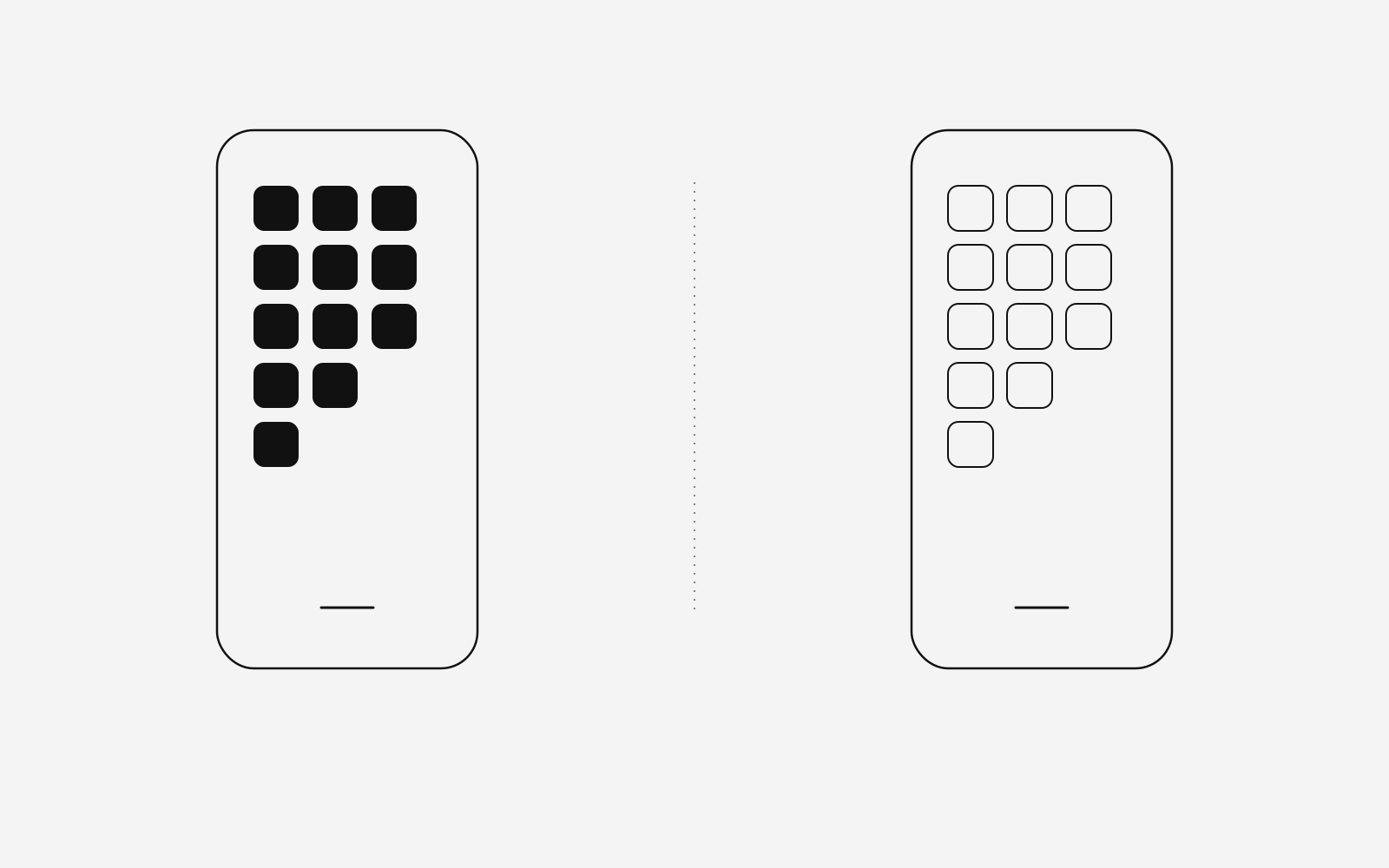
Give Work its own Home Screen page. Put the work apps there, and leave off anything you open out of habit. Give Personal a page without those apps.
You can still reach a work app through search. That small bit of friction is the point. You are not trying to forget that Outlook exists. You are trying to stop opening it because your thumb was already there.
The App Library will still show everything. That is fine. You are shortening the casual path.
Keep it to two pages. A third page, and a folder of folders, is how a boundary becomes another system you have to maintain. Two pages is enough to see which life you are in.
A week this will survive
The setup fails when it depends on you remembering to switch. Use the schedule first. Add the office as a location only if you are actually there in a predictable way. An automation that turns Work on every time you open Outlook will also bring back the work Home Screen and the allow list, which is more than you wanted for a glance.
Shortcuts can help at the edges. An automation can run when a Focus turns on or off, so the end of Work can do something small and useful, such as starting a playlist or switching on Low Power Mode.
A plain version:
- Work focus on weekdays, from before you usually start until after you usually stop.
- Personal focus outside those hours.
- One deliberate exception. If you check work mail in the evening, open the app, do the thing, and leave. Switching the whole phone into Work for a two-minute look brings the Home Screen and the allow list with it.
If you are on call, drop the arrangement for that week. Allow the work app and let the phone be a work phone. A rule you override every busy evening is a setting you have learned to ignore.
The morning is the same test. If the first thing you do is turn Personal off so you can see what you missed, Personal was never really on. Change the schedule or the allow list. Another app will not fix that.
When one phone is the wrong tool
A second number, a second phone, or a work device you can put in a drawer is the honest answer if any of these are true:
- You are being asked to put a personal iPhone under Device Enrollment, giving IT control of the whole device, and you do not want that.
- Clients or colleagues have your personal number, and you cannot get it back.
- Your work involves material that should not sit in a personal photo library, a personal iCloud, or a personal backup.
There is a related limit on the laptop, on the days when the constraint is the company's rather than Apple's: staying productive when you cannot install anything new. The phone and the work machine leak in different places. The useful habit is the same. Decide what the device is for, and stop asking one mode to behave like a wall.
Next Sunday: the story behind Unsplit, the daily word puzzle I built for iPhone. One puzzle a day, no account, no ads.